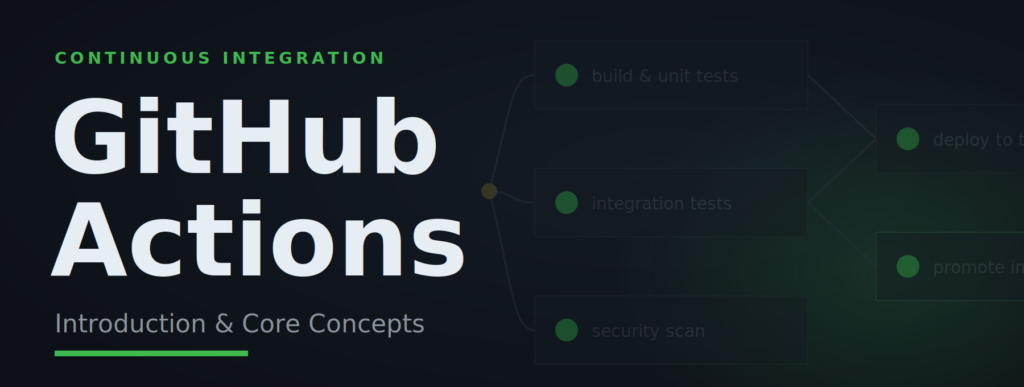
For me, the appeal of GitHub Actions is almost boringly practical. Everything lives in one place. The code, the pipeline that builds it, the logs, the secrets, the deployment history. All a click apart, inside the repository they belong to. No separate server to operate, no second UI to keep an eye on.
That sounds like a small thing. It isn’t. When the pipeline lives next to the code, a workflow change is just another file in the pull request, reviewed, versioned, and reverted like everything else. Revert the commit and the pipeline reverts with it. There is no second system to keep in sync.
Then there are the smaller things, the ones that show up every working day. Caching dependencies takes a few lines of YAML. Jobs run in parallel by default. And when something goes wrong, you don’t have to run everything again. A Kubernetes node has a bad five minutes, the integration tests fail through no fault of your code. The fix? Re-run the one job that failed. Everything upstream that already succeeded, the build and the image it produced, is reused as is, not rebuilt from scratch. None of it is magic, and individually these are small wins. Together, though, they add up to a CI/CD pipeline that is fast, consistent, and easy to run, which is all you really want from one.
What GitHub Actions actually is
GitHub Actions is the automation system built into GitHub. It watches your repository for things that happen (a push, a pull request, a schedule, a button press) and runs whatever you asked it to in response. You describe that automation in YAML files stored in the repository under .github/workflows/, and GitHub provides the machines to execute them.
That is the whole idea. What stands out is how few moving parts there are. There is no plugin to install on a server and no agent to register. The workflow file in your repo is the pipeline.
The six words that matter
GitHub Actions has a small core vocabulary. Six words do most of the work: workflow, event, job, step, action, and runner. Get these and the rest falls into place.
A workflow is a single YAML file that describes what to automate and when. A repository can hold many of them, one for CI, one for nightly cleanup, one for publishing a release.
An event is what triggers a workflow. A push, a pull_request, a schedule on a cron expression, or workflow_dispatch for a manual run from the GitHub UI.
A job groups steps that run together on one machine. A workflow can have one job or twenty. By default they run in parallel, unless you tell one to wait for another.
A step is a single task inside a job. A step either runs a shell command (run) or calls a prepackaged action (uses). Steps inside a job run one after another, top to bottom.
An action is a prepackaged piece of automation you drop into a step with uses, whether you wrote it yourself or pulled it from the Marketplace. Checking out your code, setting up a JDK, logging in to a registry. These are all actions.
A runner is the machine a job runs on. The hosted ones make this easy. GitHub gives you a fresh Ubuntu, Windows, or macOS machine for every job, preloaded with the usual tools, and throws it away when the job finishes, so runs-on: ubuntu-latest is almost always the right way to start. You can also run your own self-hosted runners, and the larger and more locked-down the organization, the more seriously that option needs thinking about, for a private network, specific hardware, or tighter control. That buys a lot, at the cost of real operational and security weight, which is a topic of its own.
Put together, the shape of a workflow looks like this:
name: CI                      # the workflow, what you see in the Actions tab

on: [push]                    # the event that triggers it

jobs:
  build:                      # a job
    runs-on: ubuntu-latest
    steps:
      - uses: actions/checkout@v4   # a step calling an action
      - run: ./mvnw clean package   # a step running a command
That is a complete, valid workflow. Everything else is variations on this skeleton.
The examples here use a Java build, since that is what we run day to day, but nothing about the concepts is Java-specific. Swap ./mvnw clean package for npm test, pytest, go test, or dotnet test, and everything in this article still holds.
Your first workflow
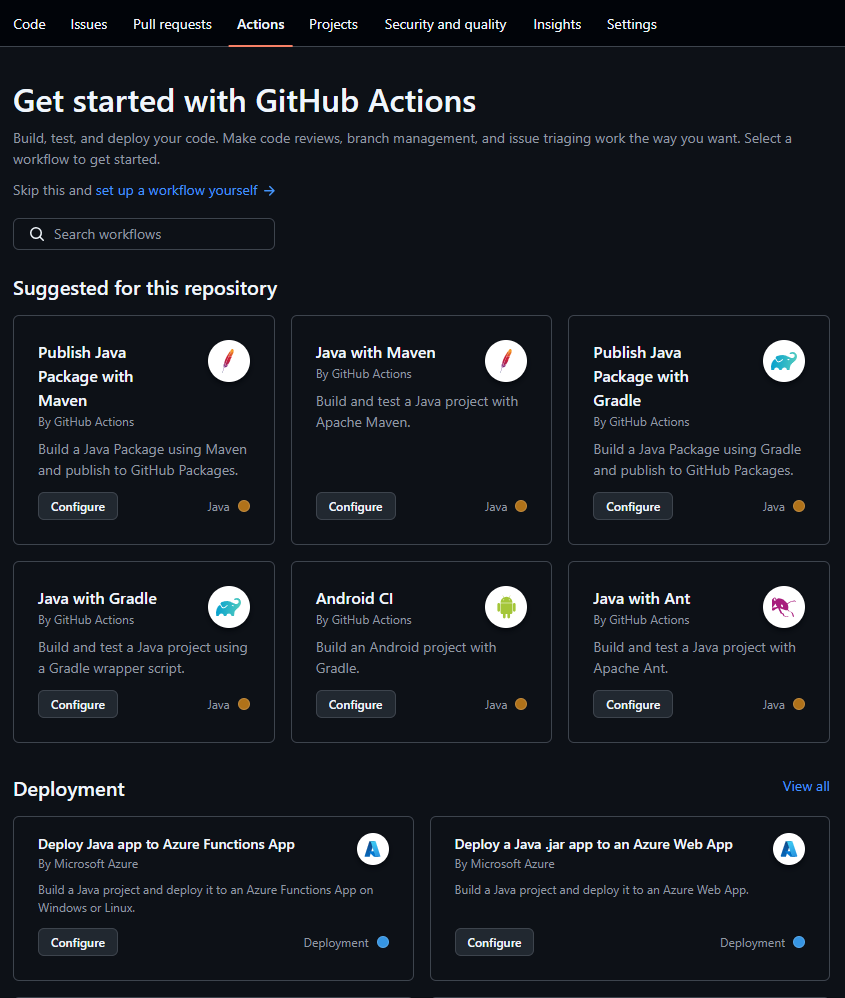
There are two ways to create a workflow, and both are fine.
The first is straight from the GitHub web interface. Open the Actions tab in your repository, click New workflow, and GitHub offers templates based on what it sees in your code. Pick one, or choose „set up a workflow yourself“ for a blank file, edit it in the browser, and commit. This is a pleasant way to experiment, because GitHub validates the file as you type.
The second is to add the file yourself, which is what you will do for anything real. Either way it lands in the same place: workflows always live in the .github/workflows/ directory, and any .yml file you put there is picked up automatically. Here is the smallest workflow that does something:
# .github/workflows/hello.yml
name: Hello

on: [push]

jobs:
  greet:
    runs-on: ubuntu-latest
    steps:
      - run: echo "Hello from GitHub Actions"
Push that, open the Actions tab, and you will see it run. It is not useful, but it proves the loop works, and it is the same loop every other workflow uses.
Jobs run in parallel, until you say otherwise
This is the part I would slow down for, because it is where GitHub Actions stops being a glorified shell script and starts being a pipeline.
Every job runs on its own fresh machine, and unless you tell it otherwise, all jobs in a workflow start at the same time. That is usually what you want. Linting, unit tests, a SonarQube analysis, a dependency vulnerability scan: none of these needs the others to finish first, so running them in sequence would just waste everyone’s time. Run them side by side and your feedback arrives in the time of the slowest one, not the sum of all of them.
Some things really do depend on each other, though, and for those you use needs. A job with needs waits for the job it points to to finish first. By default it then runs only if that job passed, which you can change with a condition if you ever need to. Anything without a needs has nothing to wait for, so it starts at once, alongside the others.
jobs:
  build:                      # no 'needs', so it starts immediately
    runs-on: ubuntu-latest
    steps:
      - uses: actions/checkout@v4
      - run: ./mvnw clean package

  static-analysis:            # also no 'needs', runs alongside build
    runs-on: ubuntu-latest
    steps:
      - uses: actions/checkout@v4
      - run: ./mvnw verify sonar:sonar

  deploy-test:
    needs: build              # waits for build, then runs on its own
    runs-on: ubuntu-latest
    steps:
      - run: ./deploy.sh test
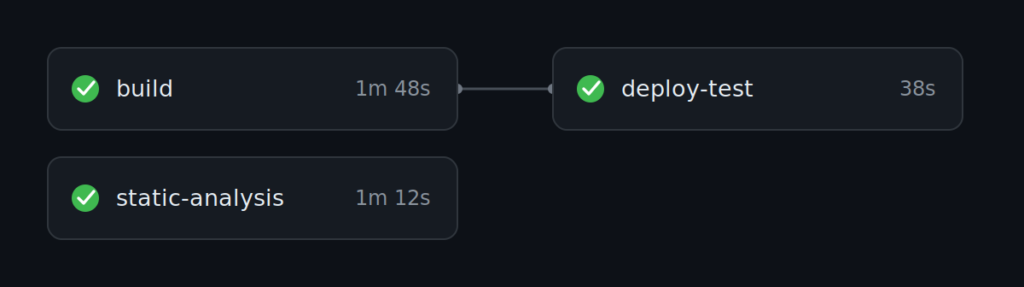
After a while a pattern emerges, the shape most real pipelines settle into. The independent checks fan out and run in parallel. The steps that form a real chain stay in sequence, because each one needs the result of the one before it.
In practice, for a typical service, that splits roughly like this. The build with its unit tests, the static analysis, and the dependency scan all run at once, because none of them needs the others and you want fast feedback. Then a short chain takes over. You deploy the new build to a test environment, then run the integration tests against it.
A common refinement is to put the cheap, fast checks first and the slow end-to-end tests last, so a typo fails the pipeline in thirty seconds instead of after a ten-minute suite. Promoting all the way to production usually sits at the end of that chain, often behind a manual approval, but a pipeline does not have to go that far to earn its keep. Confirming that a change builds, deploys, and passes its tests is plenty.
Here is what that looks like as one workflow. The steps are trimmed down to their shape. What matters is which jobs declare needs and which do not.
name: CI

on:
  push:
    branches: [main, develop]

jobs:
  # The next three have no 'needs', so they all start at the same time.
  build:                          # compile, run unit tests, build and push the image
    runs-on: ubuntu-latest
    steps:
      - uses: actions/checkout@v4
      - uses: actions/setup-java@v4
        with: ...
      - run: ./mvnw clean package
      - uses: docker/build-push-action@v6   # build and publish the Docker image
        with: ...

  static-analysis:                # SonarQube, independent of the build
    runs-on: ubuntu-latest
    steps:
      - uses: actions/checkout@v4
      - uses: actions/setup-java@v4
        with: ...
      - run: ./mvnw verify sonar:sonar
        env: ...

  security-scan:                  # dependency scan, also independent
    runs-on: ubuntu-latest
    steps:
      - uses: actions/checkout@v4
      - run: ...                  # run a vulnerability scanner over the dependencies

  # The chain below is sequential, each job needs the previous result.
  deploy-test:                    # roll the new image out to a test cluster on EKS
    needs: build
    runs-on: ubuntu-latest
    steps:
      - uses: aws-actions/configure-aws-credentials@v4
        with: ...
      - run: kubectl ...          # point the test deployment at the new image

  integration-tests:             # run against the freshly deployed environment
    needs: deploy-test
    runs-on: ubuntu-latest
    steps:
      - uses: actions/checkout@v4
      - run: ./mvnw verify -Pintegration-tests
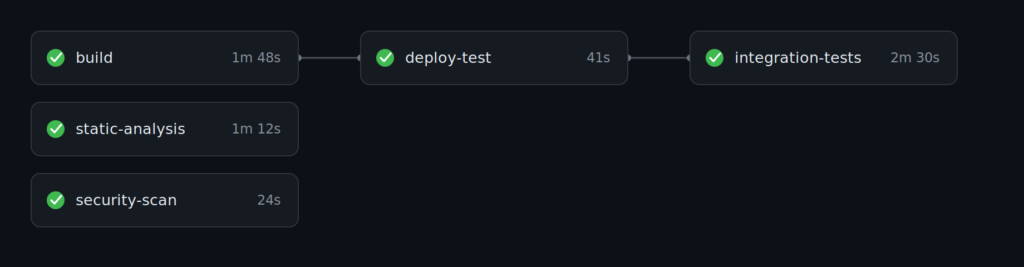
The shape, not the commands, is the point. The three checks at the top run in parallel for fast feedback, and the deploy-then-test chain hangs off the build, running in order because it has to.
Splitting work into separate jobs pays off a second time here. Because the jobs are independent, you can re-run only the one that failed, and GitHub keeps the results of the ones that already passed rather than running them again. That independence has a consequence that catches almost everyone the first time. Jobs do not share a filesystem, and they do not share results. A file one job produces is simply not there in the next one. If a later job needs it, you have to hand it over on purpose, as an artifact that one job uploads and another downloads. Nothing crosses from one job to the next on its own. The flip side is that a job is not free. Each one starts clean, so it checks out the code and sets up its tools again before it can do anything, and that takes time. So the aim is not to split everything. Keep cohesive steps together, give a separate job to work that is independent or worth running in parallel, and a transient failure costs almost nothing to retry.
The pieces you will actually touch
A handful of building blocks show up in nearly every workflow. You do not need to master them now, just recognize them.
Expressions. Anything inside ${{ }} is evaluated at runtime. It is how you read information about the run and pass values around. ${{ github.ref }} is the branch, ${{ github.sha }} the commit, ${{ env.JAVA_VERSION }} a variable you set, ${{ secrets.SONAR_TOKEN }} a secret. The objects you read from (github, env, secrets, needs and friends) are called contexts, and that is about as much as you need to know to start.
Caching. Most setup actions cache for you. cache: maven on setup-java stores ~/.m2 between runs and turns a two-minute dependency download into a few seconds. Since hosted runners are billed by the minute, that saved time is saved money. It is the highest return on the least effort in the whole system, so turn it on early.
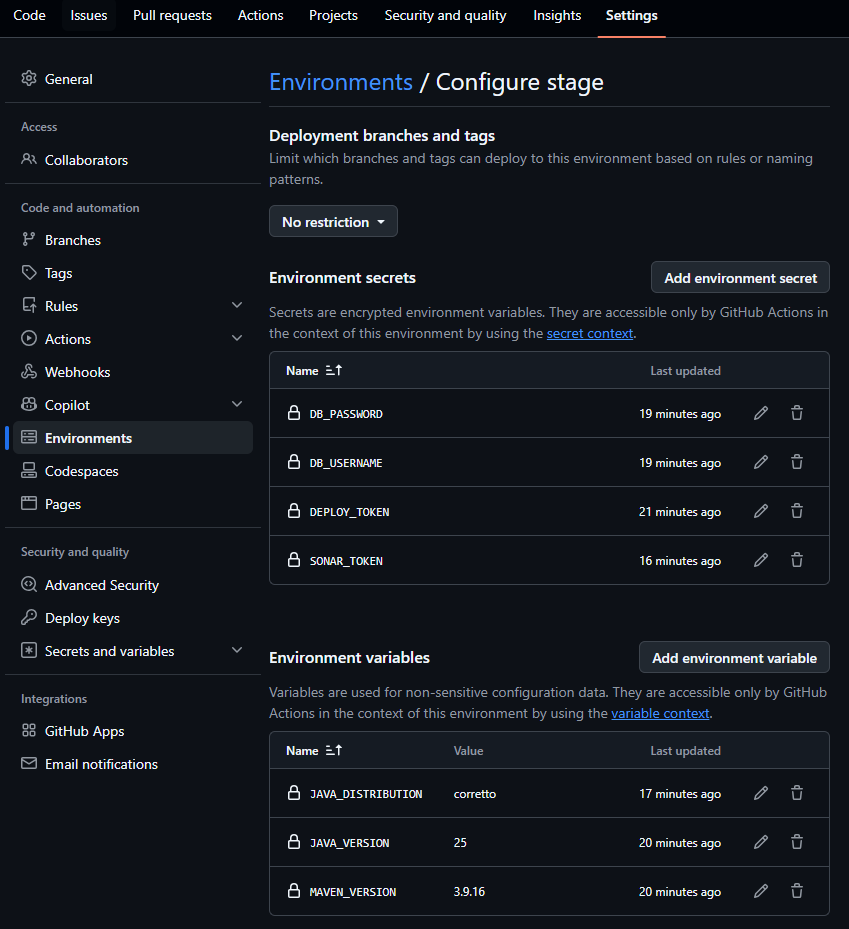
Secrets. Sensitive values go in the repository settings under Settings, Secrets and variables, Actions, and you read them through the secrets context. The one rule to internalize early is to never print a secret. Pass it as an environment variable to the step that needs it and let your script read it from there:
steps:
  - name: Deploy
    env:
      DEPLOY_TOKEN: ${{ secrets.DEPLOY_TOKEN }}   # available as $DEPLOY_TOKEN
    run: ./deploy.sh
Variables. For non-sensitive configuration, plain variables do the job. The difference from secrets is more than cosmetic. Secrets are stored encrypted and masked in the logs. Variables are plain text, in storage and in the logs alike. So a database password is a secret, a Java version is a variable.
Environments. GitHub lets you define named environments such as staging and production. The neat part for now is that the same secret name can hold a different value in each one, so DATABASE_URL resolves to the staging database in staging and the production database in production, with no change to your workflow. Environments can also gate deployments behind approvals, which is a bigger topic than it looks.
What tends to trip people up the first time
None of these are exotic. They are just the things that cost a first-timer an afternoon, so they are worth saying plainly.
Forgetting to check out the code. GitHub Actions does not clone your repository for you. If a job does anything with your source, its first step is actions/checkout. Leave it out and you get a confusing „file not found“ on a file you can clearly see in the repo.
steps:
  - uses: actions/checkout@v4     # without this, the repo is not there
  - run: ./mvnw clean package
Expecting a brand-new workflow to run from any branch. Push it to a feature branch and the push and pull_request triggers fire from that branch right away. Manual runs are the exception. The Run workflow button only appears once the workflow file exists on the repository’s default branch, usually main. So if you add a workflow_dispatch workflow on a side branch, open the Actions tab, and find no way to start it, that is why. Merge it to the default branch and the button shows up.
Hardcoding credentials. A token pasted into a workflow file is a token committed to history for everyone with read access. Use secrets, always. There is a whole discipline around this, and it is worth reading up on properly.
Reaching for needs out of habit. Adding needs everywhere recreates the slow sequential pipeline you were trying to escape. Only chain jobs that have a real dependency between them. If two jobs can run at the same time, let them.
Skipping the cache. A workflow with no caching redownloads the world on every run. It works, it is just needlessly slow, and a slow pipeline is one people start to avoid.
A word on the Marketplace
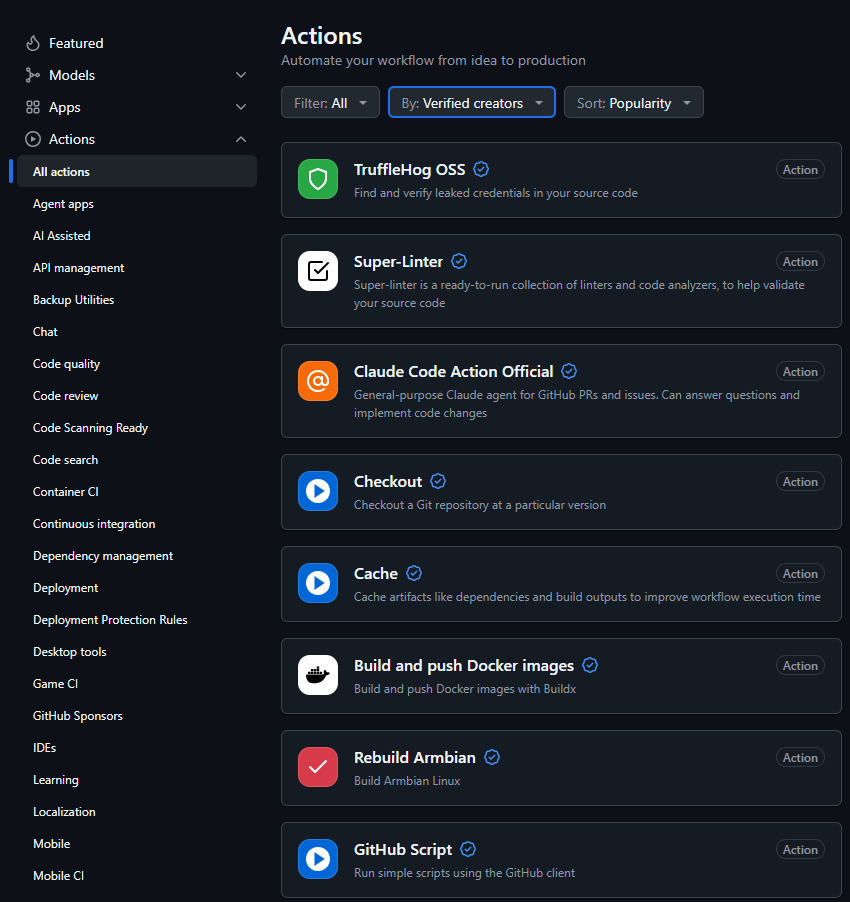
A lot of what you would otherwise script by hand already exists as an action on the GitHub Marketplace, from building a Docker image to publishing a package or deploying to a cloud. Reaching for a maintained action is usually the right call.
It is worth a moment of judgement before you trust one, though, since an action runs with access to your job. Prefer actions from GitHub itself or verified creators, check that the project is actually maintained and not abandoned two years ago, and have a quick look at the source. For anything beyond the official actions, pinning to a specific version is a sensible habit, and the security reading below explains how far to take that.
Where to go from here
If you have followed this far, you already have the model: events trigger workflows, workflows contain jobs, jobs run in parallel on runners unless needs says otherwise, and steps inside a job call actions or run commands. That is most of it. Everything more advanced is built from these same parts.
There is one direction I would point you in before any other, and that is security. A workflow is not harmless configuration, it is privileged code that can read your secrets and deploy your software, and it deserves the same care as the code it ships. My colleague Lukas Höfer wrote an excellent set of articles on exactly this, and I would read them sooner rather than later:
- Securing GitHub Actions with Native GitHub Controls
- Securing GitHub Actions with Open Source Tooling
- Appendix: GitHub Actions Security Measures
Beyond that, the best next step is the usual one. Open a repository, add a small workflow, and watch it run. The feedback loop is fast, the cost of a mistake is low, and you will learn more from one real pipeline than from any amount of reading.
A workflow that saves thirty seconds on every pull request does not sound like much. A hundred pull requests later, it is.